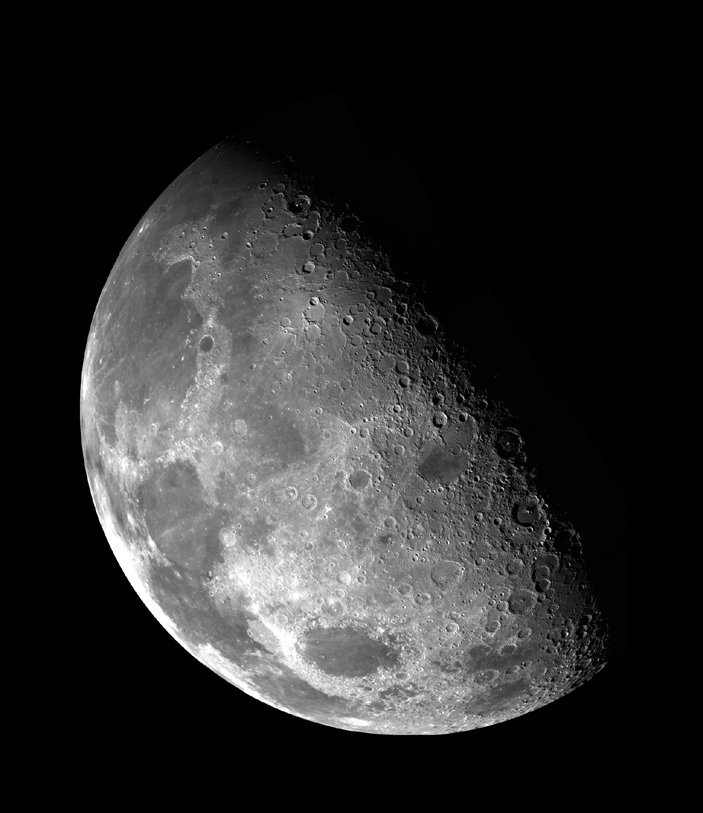
Well so far we've looked at enhancing images suffering from exposure problems and random noise. Another common source of image degradation are "lens" issues resulting in poor focus and soft or blurred images. "Lens" is quoted because focus-like issues arise even in image capture techniques that do not rely on an optical lens.
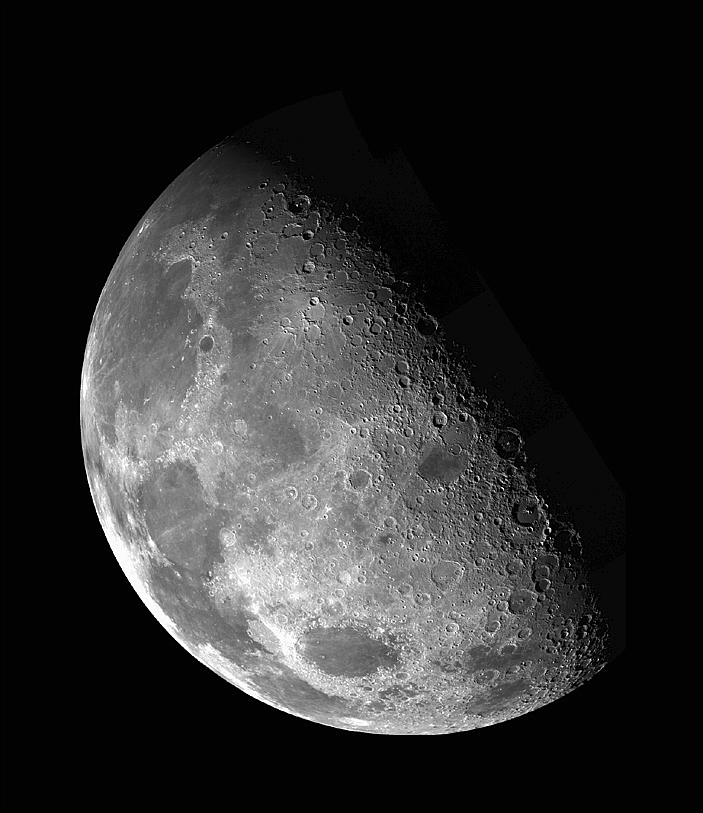
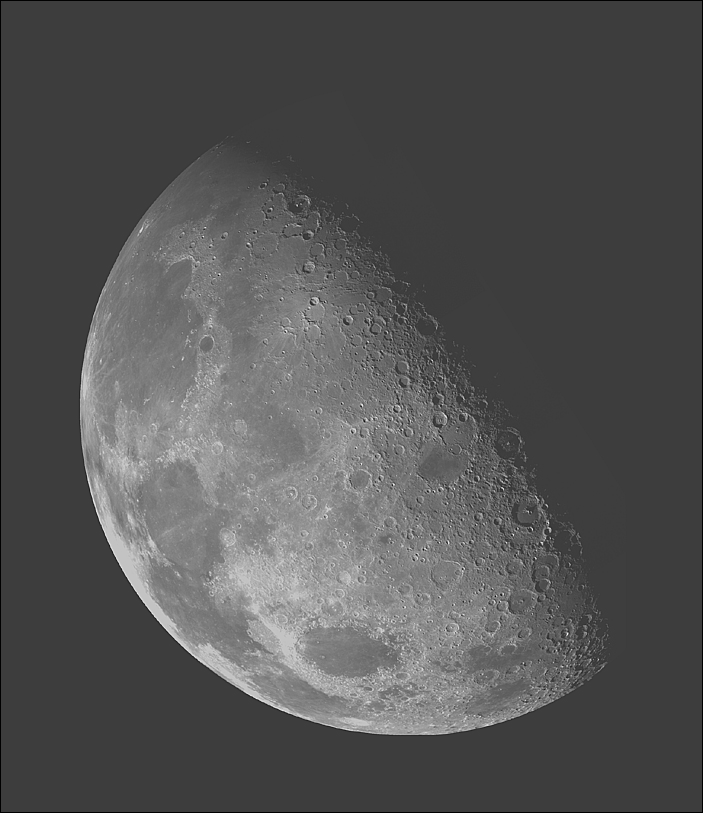
One of the least desirable effects of capturing an image with an imperfectly focussed lens is that the edges in the image are blurred. We can use an edge filter to enhance the edges in the image. For example on the left below (or above if your window is narrow) is an original image and on the right (or below) is the sharpened version.
If you examine the images closely you should be able to see that the edges in the second image are sharper and the contrast higher. Here's how to achieve this.
First apply a Laplacian filter to the image. The edge filter we used last time around is the Prewitt operator. It's a first order operator, also called a gradient filter, that is a discrete approximation to a first derivative (discrete as opposed to continuous since our pixel values make up a discrete rather than continuous function). The Laplacian operator is a second order filter that approximates the second derivative. Any image feature with high curvature, i.e. a sudden change in intensity, will be enhanced by a Laplacian filter so it is a good candidate to restore fine detail that may have been lost due to imperfect focus.
The mask for the Laplacian filter is,
| -1 | -1 | -1 |
| -1 | 8 | -1 |
| -1 | -1 | -1 |
Applying it to the original image produces this image which captures both the fine detail and the strong edges from the original image.
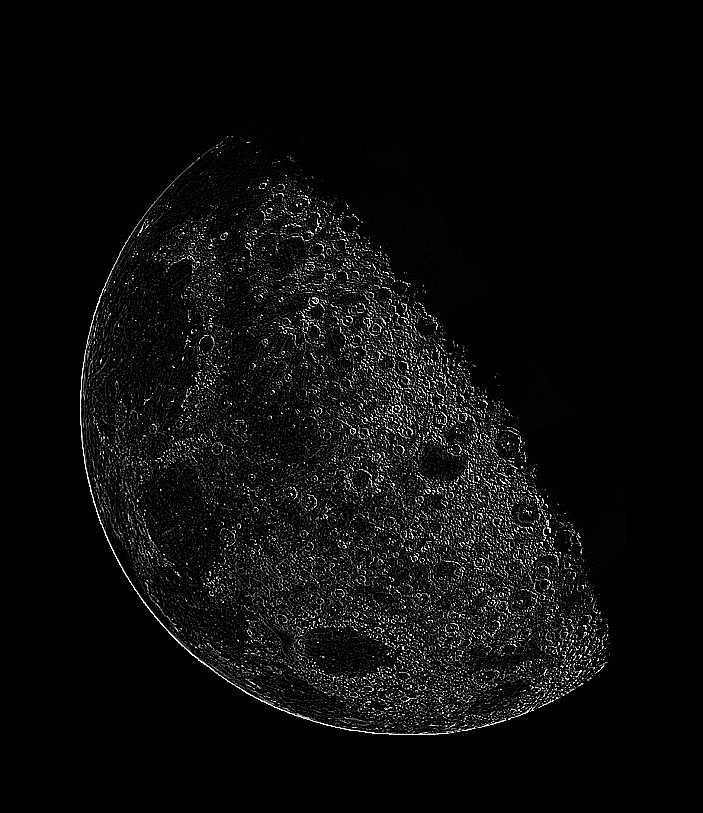
(What could go wrong? The mask can produce negative values. What will PIL do with these when you save them into the image object?)
Next we want to add the features we've extracted back into the original image. To do that we need to scale the filtered data back into the same [0, 255] range as the original image.
The scaled Laplacian image looks like this:
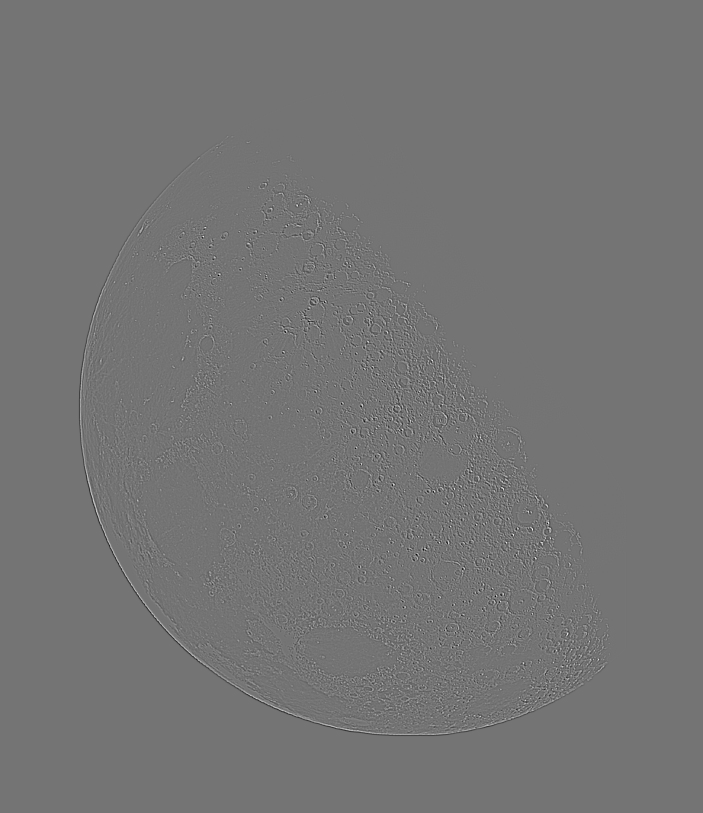
(What could go wrong? Watch out for integer arithmetic!)
Finally we're ready to add the filter output back into the original image. After adding it and adjusting the dynamic range you should get this:
(What could go wrong? When you add the two images you may get values larger than 255, what will PIL do when you save those into the image? Don't overlook the phrase "and adjusting the dynamic range" above.)
If we look hard we can see that finer detail is more visible in this image, but the image as a whole appears lighter than the original. This isn't because it doesn't use the full of pixel values. Check the image and you will see that its values range from 0 to 255. The problem is a little more subtle: the distribution of the pixel values is not the same as it was in the original image. Perhaps something like this:
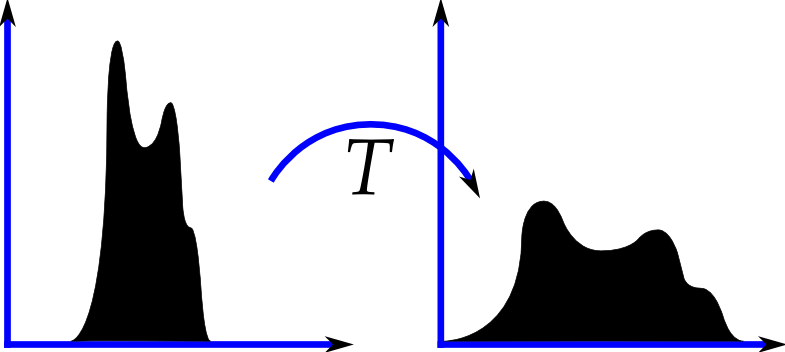
We can correct for that by equalizing the distribution of pixel values in this image to the distribution of pixel values in the original. (A function to do the histogram equalization is provided below.) Doing that gets us this image:
def equalize(input_image, model_image):
    ''' Returns eq_image a version of input_image whose pixel values have been
        equalized so its histogram will match model_image's histogram.

        Leaves input_image and model_image unchanged.

        See http://en.wikipedia.org/wiki/Histogram_matching and
        http://en.wikipedia.org/wiki/Histogram_equalization for
        background.

        Outline:
        1. Build histograms of the grey level values in each image.
        2. Build cumulative distributions (CDFs) of the grey level values in
           each image from the histograms.
        3. Use the CDFs to build a pixel value lookup table (LUT).
        4. Loop through the input image and use the LUT to assign
           new equalized pixel values.
    '''
    # 1. Get the grey level histograms for each image.
    input_histogram = input_image.histogram()
    model_histogram = model_image.histogram()
    # print input_histogram, '\n', model_histogram # DEBUG
    # Minimal error checking to avoid annoying failures.
    if len(input_histogram) != len(model_histogram):
        print 'Error: Histograms do not have same length!'
        return
    if len(input_histogram) != 256 or len(model_histogram) != 256:
        print 'Error: Histograms do not use full 0-255 range of values!'
        return

    # 2. Build the Cumulative Distribution Functions (cdf's) for each image
    # TODO: s/b a separate function.
    input_cdf = input_histogram[:]
    for i in range(1, len(input_cdf)):
        input_cdf[i] = input_cdf[i] + input_cdf[i-1]
    model_cdf = model_histogram[:]
    for i in range(1, len(model_cdf)):
        model_cdf[i] = model_cdf[i] + model_cdf[i-1]
    # print input_cdf, '\n', model_cdf # DEBUG

    # 3. Build a lookup table (lut) that will let us look up a pixel value in
    # input_image to see what it should become in the equalized image.
    lut = 256*[0]
    # The rule is to assign each lut entry the index (grey level) of
    # the first entry in model_cdf that is greater than or equal to
    # input_cdf's entry.
    grey_level = 0
    for input_cdf_index in range(len(input_histogram)):
        while model_cdf[grey_level] < input_cdf[input_cdf_index]:
            grey_level += 1
        lut[input_cdf_index] = grey_level
    # print lut # DEBUG

    # 4. Create the equalized image, eq_image, by looping through input_image
    # using the lut to assign pixel values for eq_image.
    eq_image = Image.new("L", input_image.size)
    eq_pix = eq_image.load()
    input_pix = input_image.load()
    for x in range(im.size[0]):
        for y in range(im.size[1]):
            eq_pix[x,y] = lut[input_pix[x,y]]

    return eq_image
(Don't worry about the TODO in there, it's for me not you.)